
Spatial 3D Display Software: Integration Worksheet
“Spatial 3D display software” is not usually one required download. It is a chain of tools that opens or creates the source, renders or exports two views, packages or plays those views, and sends a supported signal to the display. Integration succeeds when every role has a named tool, input, output, owner, and test.
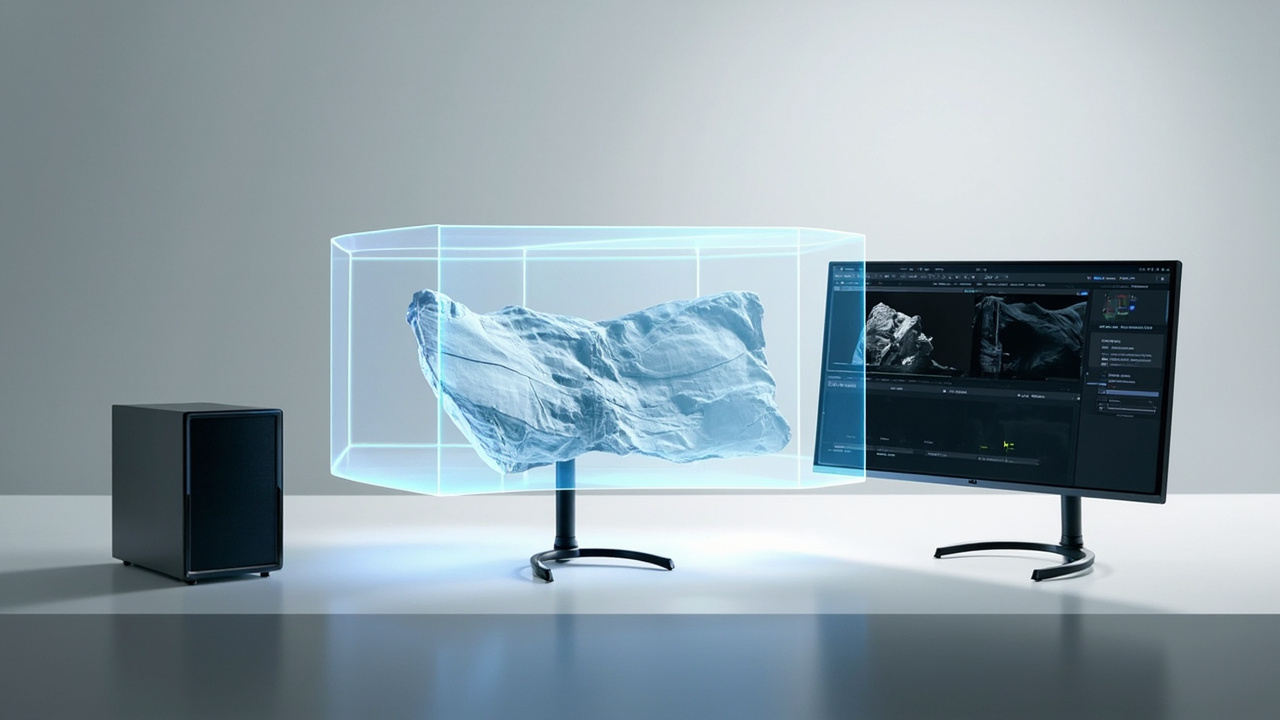
Map the five software roles
One application may perform several roles, but separating them exposes missing steps.
| Role | Question to answer | Example output |
|---|---|---|
| source/content tool | where does the spatial information originate? | model, volume, scene, binocular media |
| renderer/exporter | how are left and right views created? | real-time stereo, SBS file, dual images |
| player/viewer | how are the views opened, controlled, or presented? | full-screen SBS playback, interactive scene |
| transport/OS layer | how does the host send the signal? | supported resolution, refresh rate, color mode |
| display control | how is the correct spatial input/mode selected? | display mode, mapping, tracking behavior |
If a team says “the software supports 3D,” ask which row that statement covers. It may mean the tool edits 3D geometry but cannot output a stereo pair.
Complete the integration record
For each production workflow, document:
Content type and representative file:
Source application and version:
Stereo generation method:
Output packaging and eye order:
Player or runtime and version:
Host OS, GPU, port, resolution, and refresh rate:
Display input and mode:
Primary viewer and room:
Acceptance result and known limits:
This record prevents a successful one-time demonstration from becoming an undocumented dependency on one operator or machine.
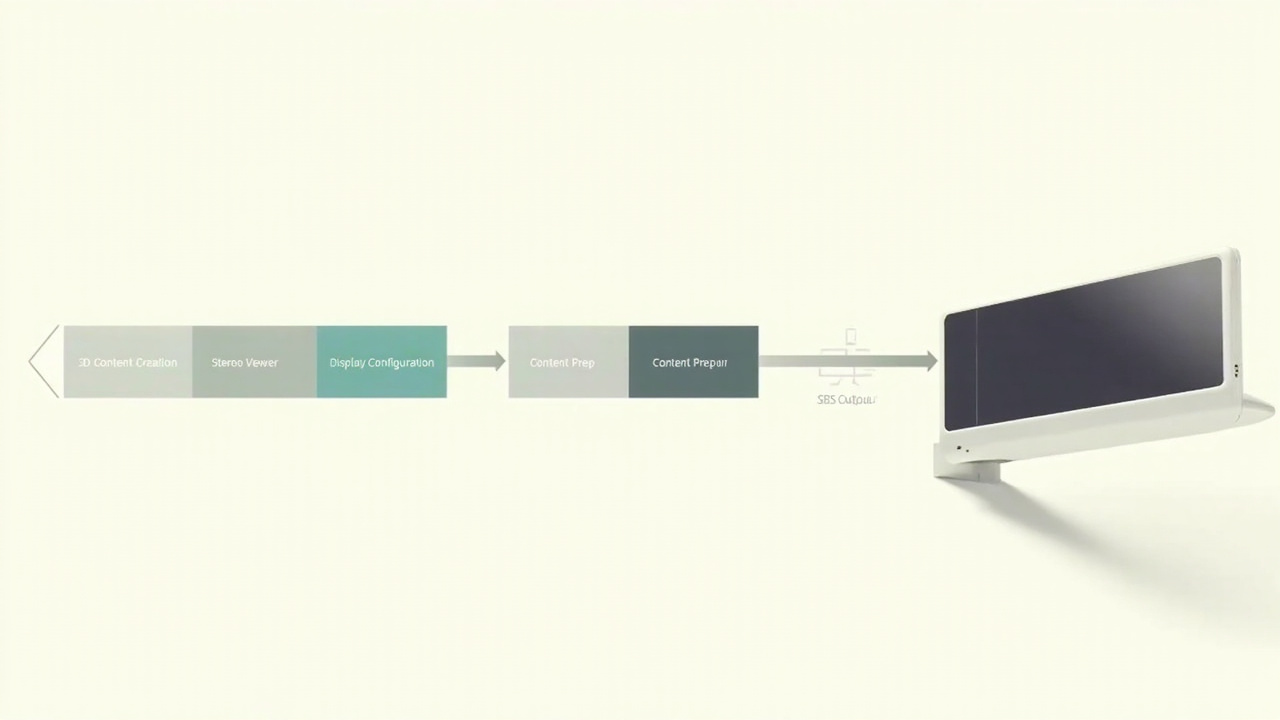
Choose the path by source type
Prepared stereo media
SBS or top-and-bottom media needs a player that preserves aspect ratio, frame rate, resolution, and eye order. This is often the quickest validation path because the stereo pair already exists.
Interactive 3D applications
CAD, game engines, simulation, and visualization tools need a stereo camera or output method. Some applications provide it directly; others require a plugin, a custom render path, or export to a supported player. Confirm version-specific behavior.
Volumetric and specialist applications
Medical, industrial, scientific, or microscope software may own the rendering and interaction workflow. Preserve that application where possible and determine whether it can output stereo, a compatible video format, or data that another approved viewer can open.
Common 3D assets
A mesh or scene file contains geometry, not necessarily a presentation. A player still needs to interpret scale, materials, camera, animation, and stereo output. Validate the actual asset rather than relying on extension support.
The content compatibility guide is the canonical inventory of these content paths.
Keep host and display responsibilities separate
The host application may still need substantial GPU or CPU resources to render a large scene or volume. Display-side processing can handle display-specific view mapping without taking over the application’s rendering workload.
This boundary matters during troubleshooting. Low application frame rate belongs to the host or source. Incorrect view routing may belong to packaging or display mode. Depth that changes with viewer position may involve tracking, mapping, optics, or room setup.
Define acceptance evidence
Do not accept “connected” or “3D enabled” as a result. A software path passes when:
- representative content opens without conversion surprises;
- the intended left/right views reach the display in the correct order;
- the image scale and aspect ratio are correct;
- interaction or playback meets the task’s frame-rate needs;
- depth remains readable during normal viewer movement;
- another trained operator can repeat the documented steps;
- 2D fallback remains available when the task needs it.
Software fit can affect screen-role choice
A workflow that spends most of the day in dense 2D application interfaces and switches to 3D for review may need a strong mixed-use main screen. A station that launches prepared stereo content on demand may work better with a dedicated spatial display beside the primary monitor.
That is a hardware-role decision after the software chain is understood. Use the Pro vs Essential guide only after completing the worksheet.
When to escalate
Request a real-content evaluation when the application uses proprietary rendering, stereo support varies by version or operating system, content cannot leave a controlled environment, or the workflow depends on synchronized live input. Include the completed record and the smallest safe representative sample in an Ask Before Ordering request.
The goal is not a long list of nominally compatible software. It is one reproducible path for each task the team intends to perform.