
Spatial 3D Display App: Technical Explainer
A spatial 3D display app is the software layer that prepares, routes, or renders stereo and 3D-ready visual content so it can be shown on a glasses-free 3D spatial display. On 3DV systems, the app is not a closed media player alone; it is the bridge between your source content — CAD, DICOM, CT, SBS stereo, WebGL, Unity, or Unreal — and the autostereoscopic display hardware that delivers separate left-eye and right-eye views without 3D glasses or a VR headset.
This explainer describes how a spatial 3D display app fits the 3DV Spatial Display workflow, what content the app is expected to deliver, where current models help, and where buyers should pause and verify before committing.
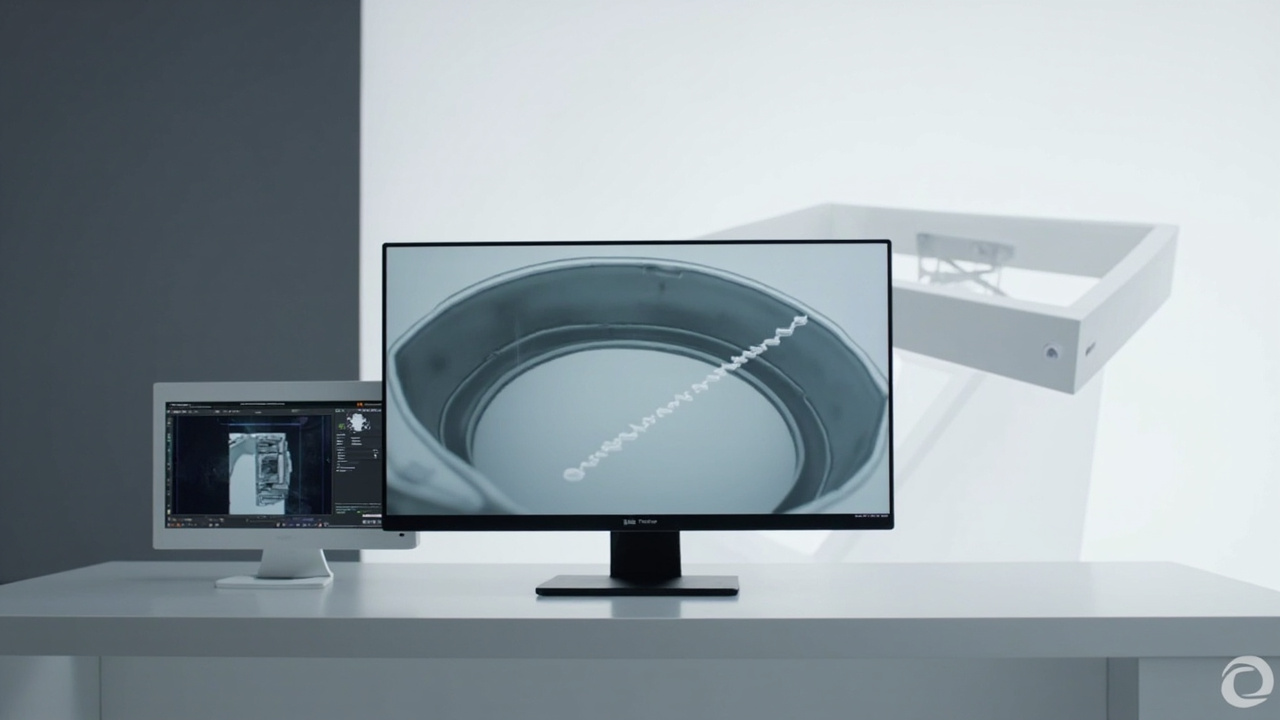
A spatial 3D display app delivers stereo or multi-view content to a glasses-free 3DV Spatial Display, where eye-tracked autostereoscopic optics render depth without 3D glasses.
What is a spatial 3D display app
A spatial 3D display app is any application pipeline that outputs content in a form an autostereoscopic display can use to create real perceived depth. In practice, that means the app must produce either:
- A side-by-side (SBS) stereo stream, where left-eye and right-eye views are packed into a single frame.
- A native multi-view output, where the app sends the parallax views the display’s optical layer needs.
- A 3D-ready render, such as a WebGL, Unity, Unreal, or custom 3D engine pipeline, that can be mapped into the display’s view slots at runtime.
On 3DV Spatial Displays, the app-side responsibility is paired with display-side work: structured-light eye tracking locates the viewer, an FPGA on the display maps dynamic stereo views, and a microlens or lenticular optical layer delivers the separate views to each eye. The app does not need to track the viewer’s eyes; it needs to feed the display a clean stereo or multi-view source.
How the app maps to a glasses-free 3DV Spatial Display
The app sits upstream of the display. Three layers cooperate:
- Source content layer. Your CAD model, DICOM volume, industrial CT scan, stereo video, or 3D engine scene.
- App layer. A spatial 3D display app, viewer, or pipeline that formats the source for stereo output — for example, an SBS exporter, a stereo-capable DICOM viewer, or a WebGL/Unity/Unreal build with a stereo camera rig.
- 3DV Spatial Display layer. The display receives the stereo stream, applies dynamic stereo view mapping, and uses its eye-tracked autostereoscopic optics to show depth without glasses.
This separation matters for buyers. If your existing tools already output stereo or 3D-ready content, an app layer may be a light wrapper. If your tools output only flat 2D, the app layer must do real conversion work, and results will depend on the source material.
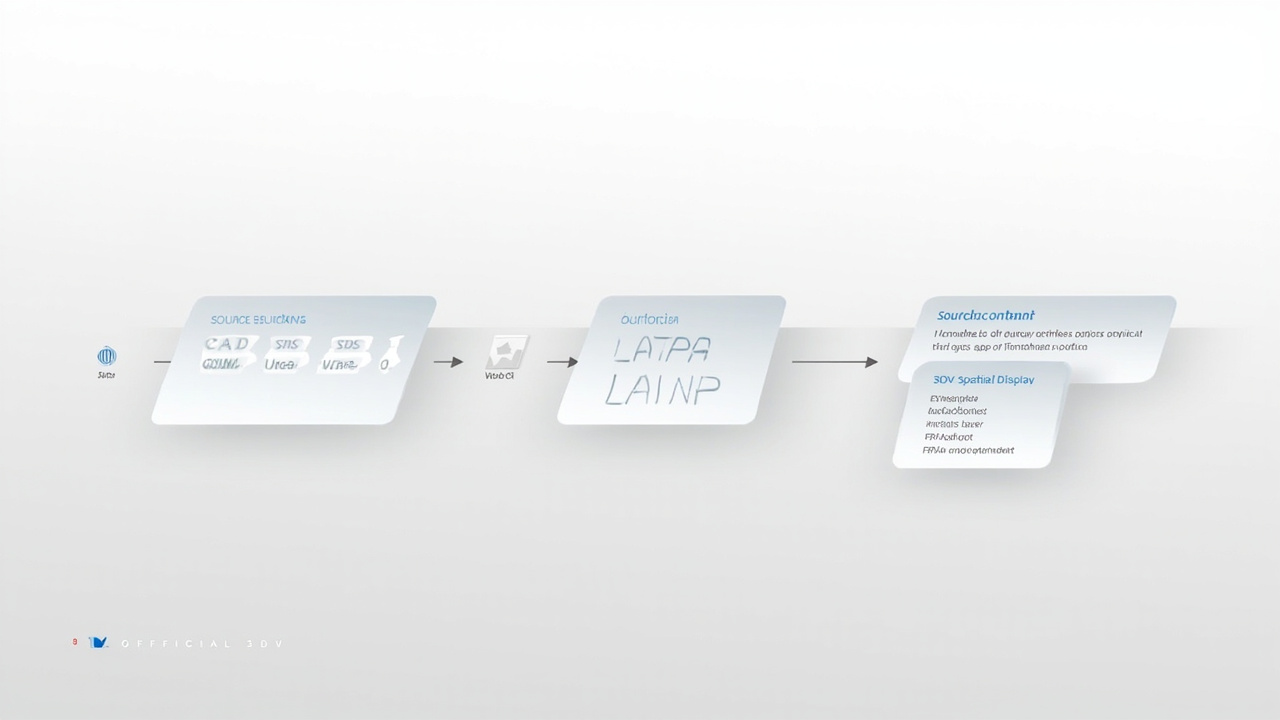
The app layer sits between source content and the display, formatting stereo or 3D-ready output for the autostereoscopic optics to render as depth.
Core content types a spatial 3D display app expects
Best-fit content types for a spatial 3D display app on 3DV hardware:
- SBS side-by-side stereo content, played or streamed through a compatible viewer such as the 3DV Spatial Player.
- CAD and 3D model viewers that expose a stereo camera or SBS export path.
- Medical and industrial 3D exports, including DICOM volumes and CT-derived geometry that a stereo-capable viewer can render with depth.
- Unity, Unreal, WebGL, or custom 3D applications built with a stereo camera rig or a multi-view output path.
- Stereo-ready video pipelines, including pre-rendered stereo assets used in training, education, and demo environments.
Content that typically needs preparation before it flows through a spatial 3D display app:
- Ordinary 2D videos without a stereo track or depth map.
- Flat images and screenshots that carry no depth information.
- Software that only outputs a single 2D view, with no stereo or multi-view option.
- 3D applications without a stereo camera or SBS output path.
For a deeper compatibility walk-through, see the Spatial 3D Display Software Workflow and Compatibility Guide and the Stereoscopic Display Software Workflow and Compatibility Guide.
Workflow fit: medical, industrial, CAD, education, demo
3DV positions Spatial Displays for professional review workflows where a monitor-style setup beats a headset.
- Medical visualization and education. Anatomy review, case discussion, surgical training, and team review of 3D medical visuals. The app layer is usually a stereo-capable DICOM or 3D viewer running on a workstation.
- Industrial inspection and NDT. CT, X-ray, QA, and defect review where depth helps teams judge geometry. The app layer typically renders volumetric or surface data into stereo for shared review.
- CAD and design review. Product design, architecture, and engineering teams evaluating 3D models. The app layer is usually a CAD viewer or 3D engine build with stereo output enabled.
- Education and training. Lecture rooms, labs, and teaching spaces where multiple viewers take turns at the display.
- Sales, showroom, and demo. Prepared 3D content presented to buyers or visitors in a controlled viewing position.
Claims in medical contexts are kept to visualization, review, education, training, communication, and workflow evaluation. 3DV does not position Spatial Displays for diagnosis.
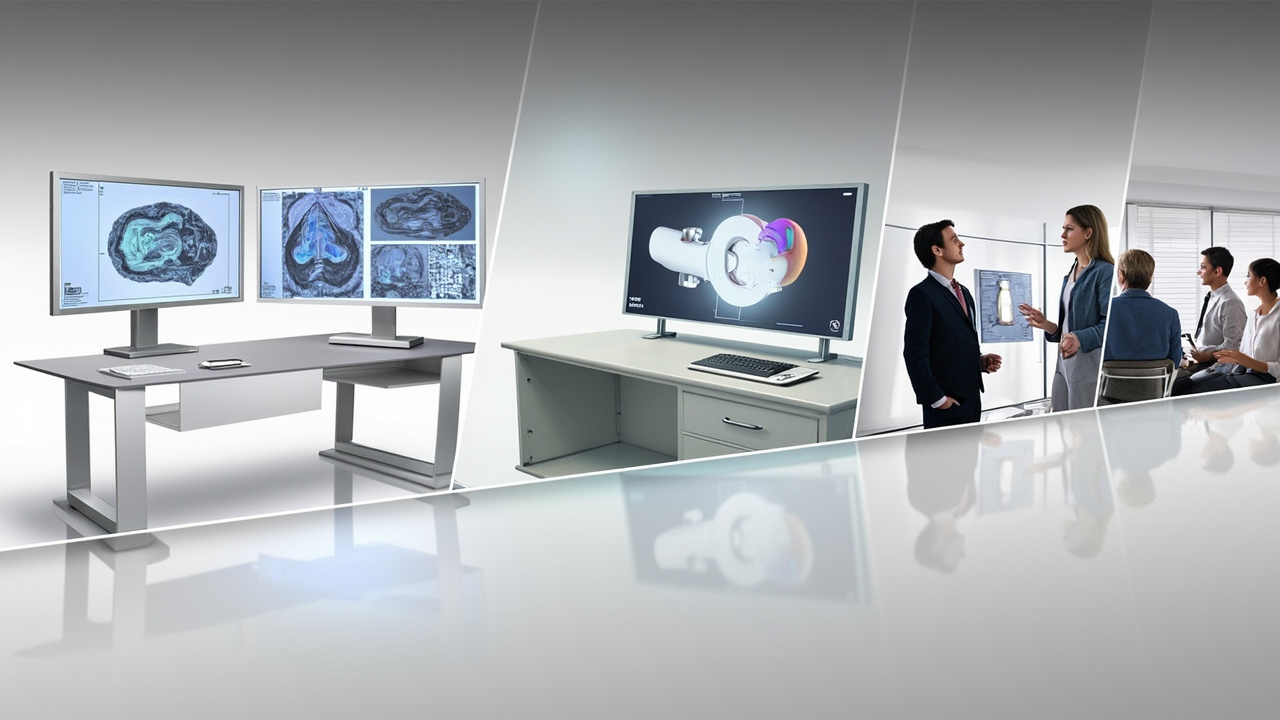
Best-fit workflows for a spatial 3D display app: medical visualization, industrial inspection, CAD review, education, and demo.
Requirements and limits of current 3DV Spatial Display models
Current 3DV Spatial Display positioning is non-touch. Plan the app workflow around a monitor-style interaction model — keyboard, mouse, trackpad, or external control surface — unless a future source explicitly changes this.
Model fit at a glance, based on the current 3DV Spatial Display lineup:
- 14 inch Essential. Compact demos and dedicated 3D review setups. Best when the app workflow is stationary and the display is sized for one focused viewer.
- 15.6 inch Pro. Portable mixed 2D / 3D workstation use. Best when the app needs to switch between a normal 2D desktop and 3D review during the same session.
- 27 inch Pro. Main professional review station. Best for CAD review, medical visualization workstations, and industrial inspection desks running a stereo-capable app.
- 32 inch Essential. Large dedicated 3D room, lab, showroom, or classroom. Best when the app is presenting prepared content to a small group taking turns.
These price points are a snapshot from the current site. Prices drift, so verify against the live shop before quoting, planning a budget, or building a pricing report.
Choosing between Pro and Essential for an app-driven workflow
Pro and Essential differ in ways that matter to a spatial 3D display app workflow.
- Choose Pro when the app frequently alternates between high-quality 2D use (dashboards, documents, 2D reference material) and 3D review in the same session. The Pro line is built around strong 2D / 3D switching.
- Choose Essential when the display is mainly a dedicated 3D spatial monitor running the app for review, demo, or training. Day-to-day 2D use is not the priority.
If your app workflow is mostly stereo content shown to a single viewer in a fixed location, an Essential model usually fits. If your team needs to keep normal 2D tools open alongside the 3D review app, a Pro model is the safer fit.
Preparing source content for the app
A spatial 3D display app is only as good as its source. Before you commit to a model, walk through these checks:
- Confirm the source can output stereo or 3D-ready content. CAD, DICOM, Unity, Unreal, WebGL, and SBS-capable players are the easiest fits.
- Test the source against the 3DV Spatial Player or the Spatial Display Simulator to confirm depth looks correct before deploying on hardware.
- If your source is 2D only, decide whether depth can be reconstructed, or whether the workflow should be reframed around 3D-ready source material.
- For shared-viewer scenarios, plan the viewing position. Eye tracking improves the experience, but viewer position still matters.
- Document the app pipeline so IT, ops, and review teams all know which tools produce the stereo stream.
Next steps: compatibility, simulator, and demo
If a spatial 3D display app is part of your evaluation, use these 3DV support routes before ordering:
- Run the Content-to-3D Path Checker at /compatibility/ to test whether your source content can reach the display.
- Open the Spatial Display Simulator at /player/ to preview the viewing experience in a browser.
- Use the 3DV Spatial Player at /player/sbs/ to validate SBS content.
- Walk the Display Selector at /display-selector/ to match a model to your workflow.
- If anything is unclear, use the Ask Before Ordering route at /ask-before-ordering/ before committing.
For the broader category context, see the Spatial 3D Display: Technical Explainer and the Autostereoscopy glossary. For software pairing, the Spatial 3D Display Software Workflow and Compatibility Guide and the Stereoscopic Display Software Workflow and Compatibility Guide cover the app side in more depth.