
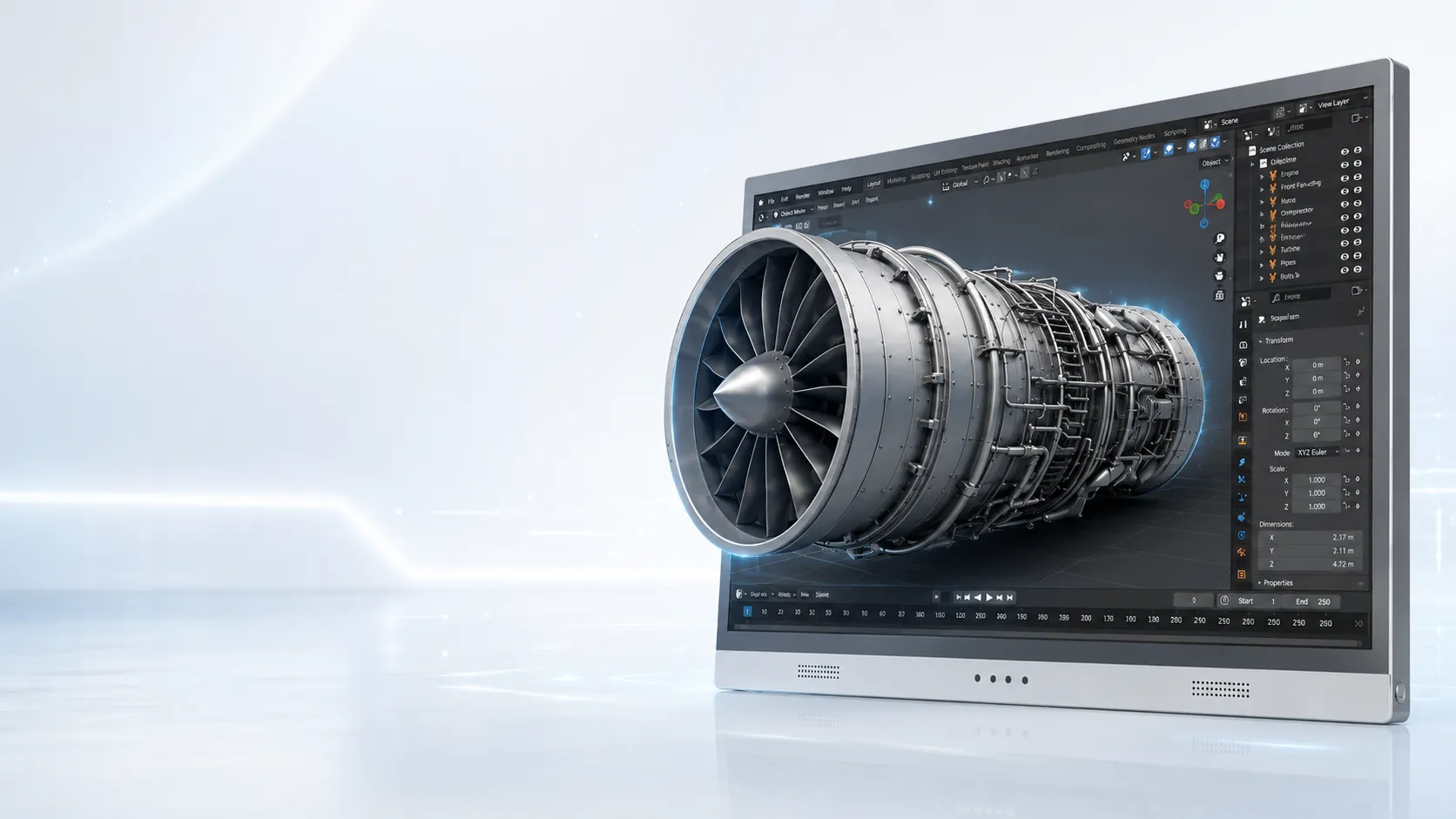
Ready to test
- Exported GLB, OBJ, or FBX model
- WebGL, Unity, or Unreal viewer
- SBS render or stereo output
- Prepared product review scene
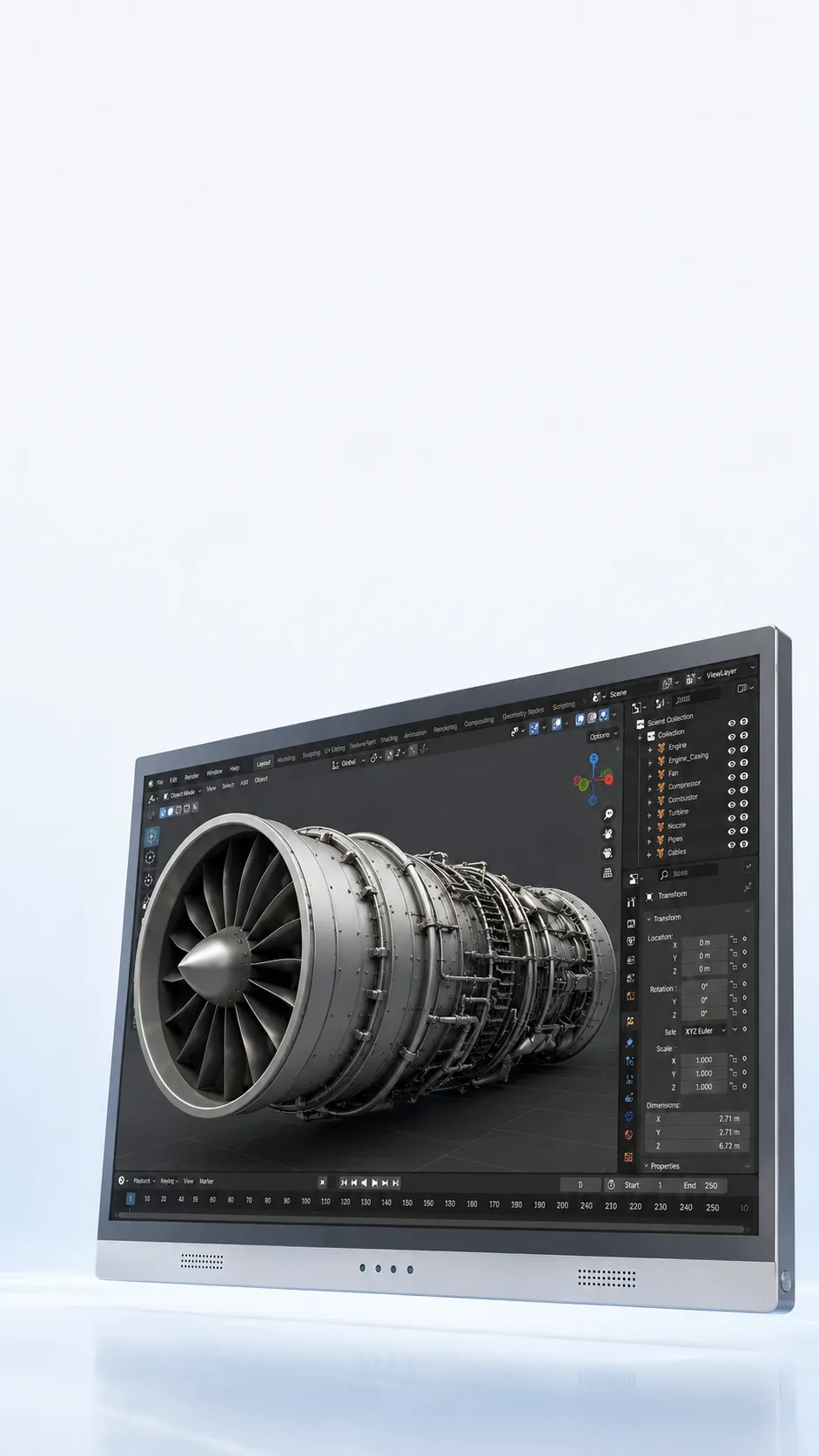
CAD / 3D Model Review
Review CAD models, product geometry, and mechanical structures with visible depth while keeping your existing design review workflow.
A CAD file needs a viewer or rendering path before it becomes display-ready 3D.
CAD and 3D model review
Built for geometry review, structure reading, and design communication.
Client and supplier design communication
Use visible depth without moving every stakeholder into a headset.
Check your viewer or export path
The display path matters as much as the CAD file itself.
Check the path first
Check the content, viewer, and output you already use before choosing only by screen size.
Check your content
Use these groups as a first check. If your software or format is missing, ask us instead of guessing.
Display path
Models and prices
Mixed 2D and 3D desks usually start with Pro models, especially when the same station is used for both design work and review.
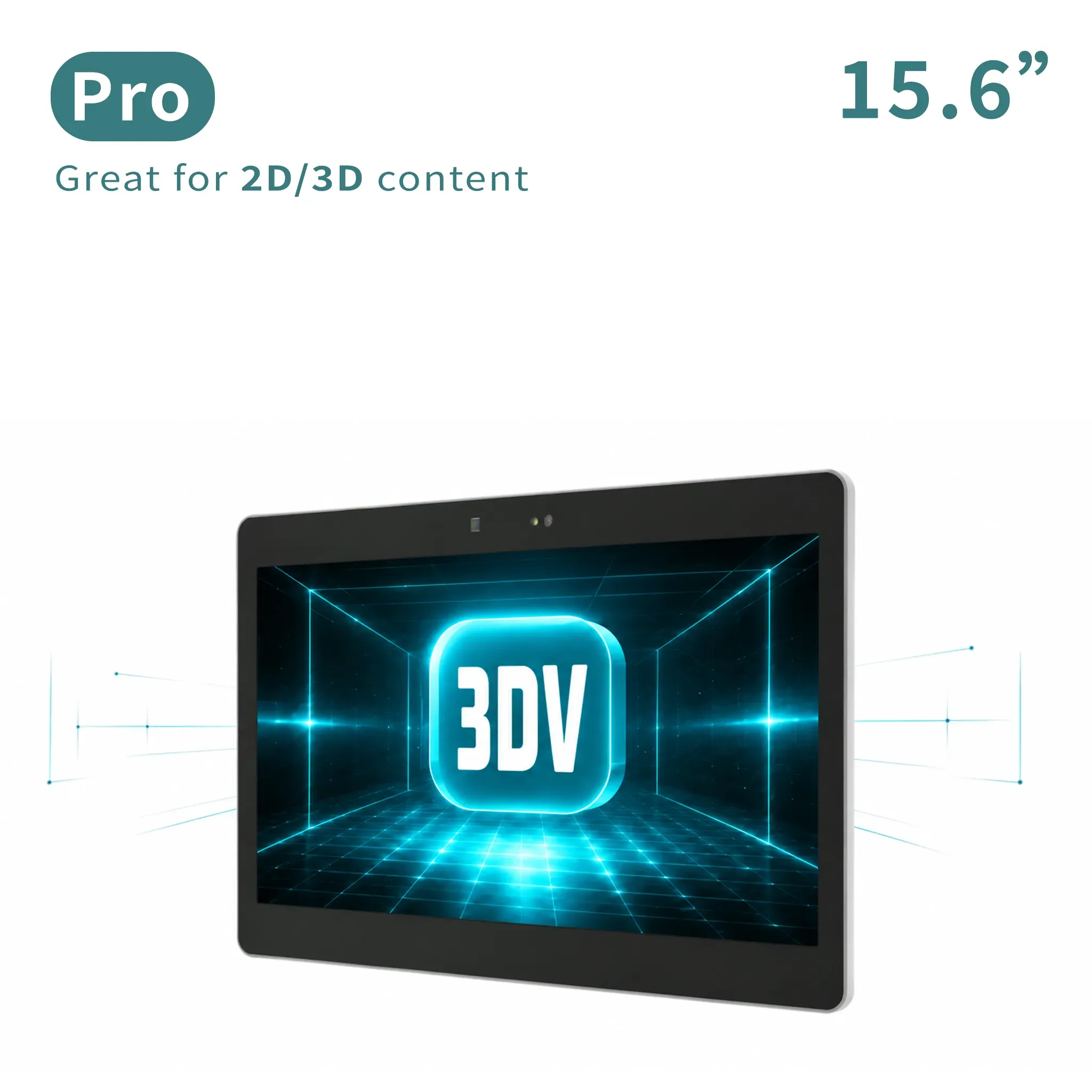
Portable 2D / 3D
Portable mixed 2D/3D workstation use.
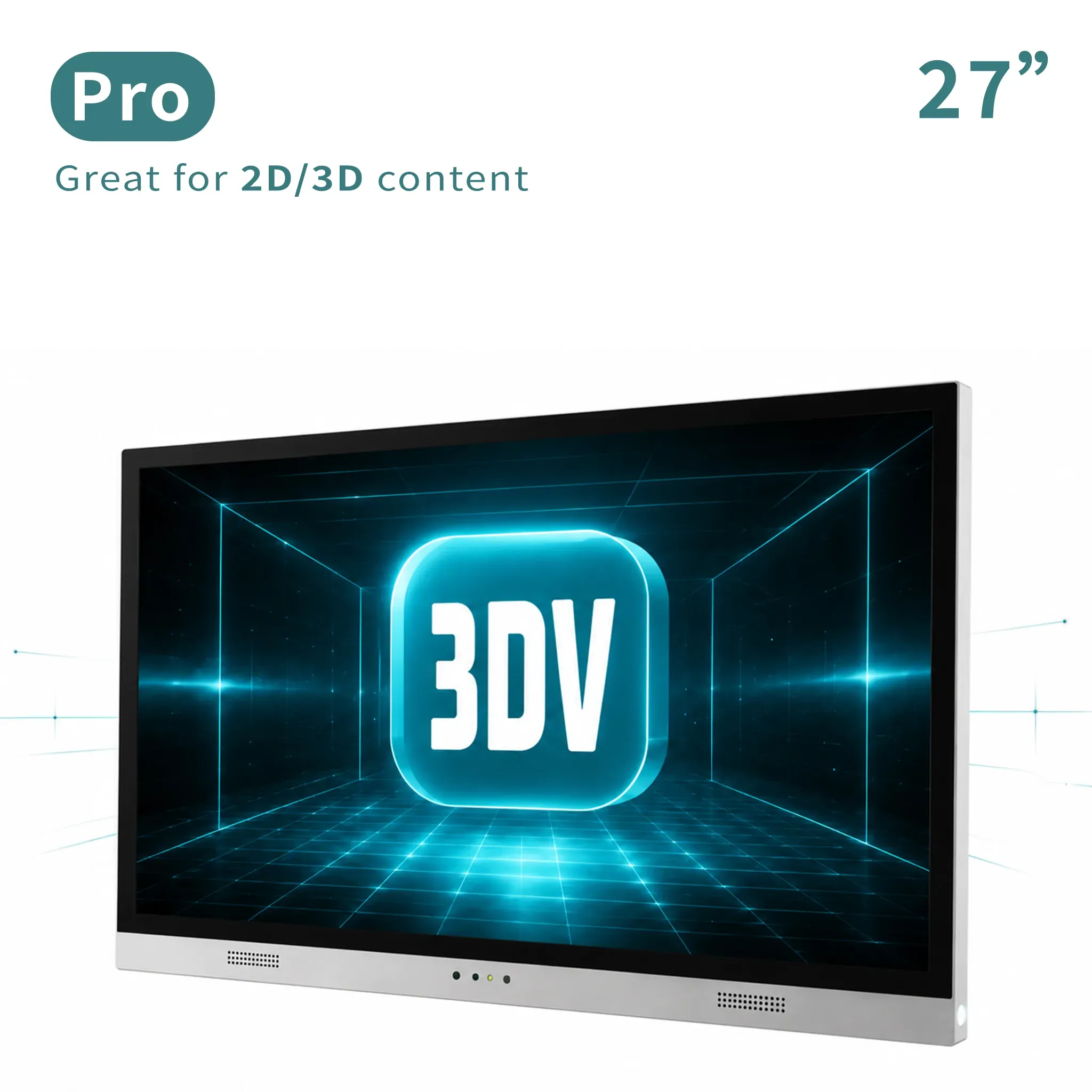
Main review workstation
Main professional review station for frequent 2D/3D switching.
Pro or Essential?
If this will also be your everyday 2D monitor and you expect to switch between 2D and 3D often.
If the display will mainly show prepared 3D content in a demo, lab, showroom, or review station.
Not sure which description sounds like your setup? Tell us how you plan to use it.
Check it with usCommon questions
The right display depends on both the physical setup and the content workflow.
A STEP file still needs CAD software, an exported viewer, or another rendering path that can produce a suitable 3D view.
The important question is the viewer or export path rather than the software name alone. Send us the current tool and output route to check.
Pro models are usually the stronger starting point when the same desk switches frequently between ordinary 2D CAD work and 3D review.
Often yes when the chosen viewer can render the model through a supported stereo or spatial display path.
Ask 3DV
Tell us the software, file type, and viewer path you already use.
Thanks - your request has been sent.
We will review your content path and reply with the recommended next step within one business day.